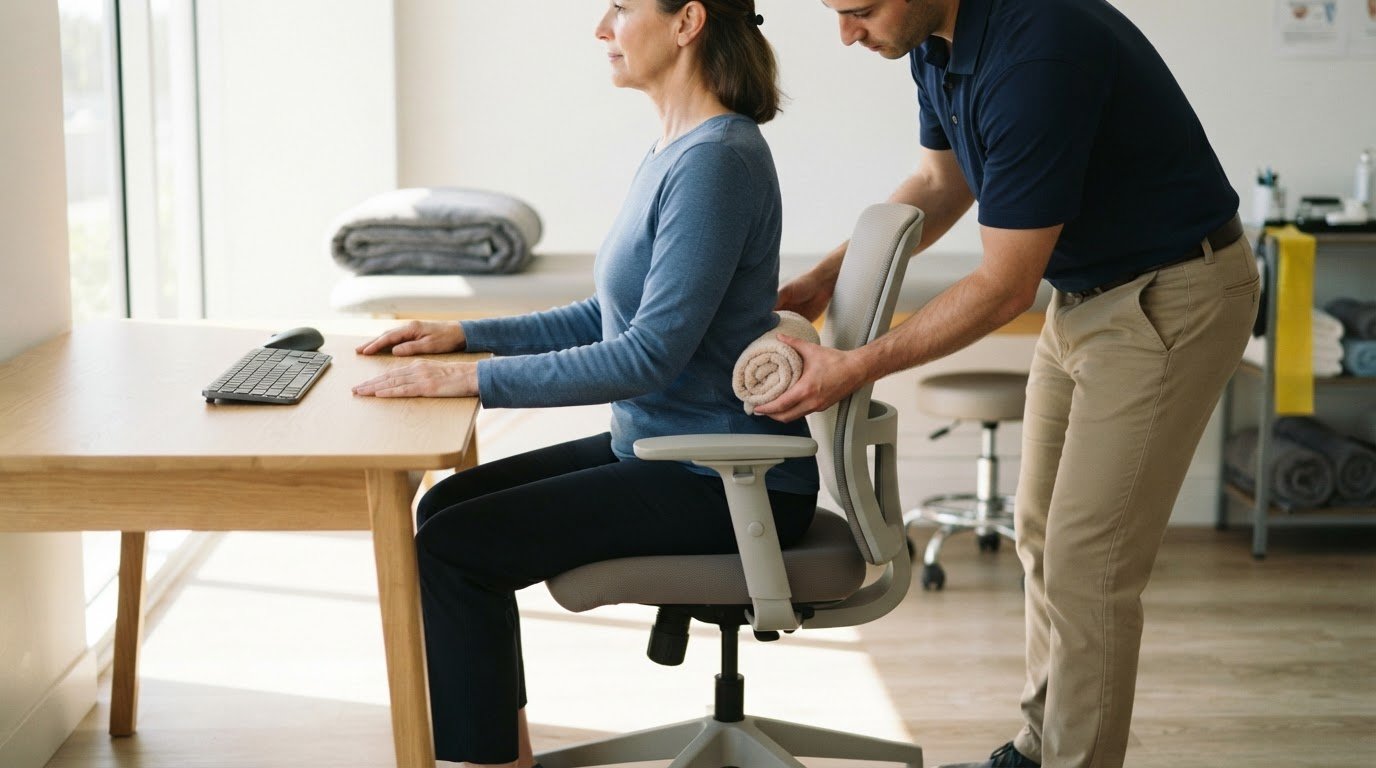
A better work-from-home posture doesn’t come from holding one perfect position all day. Learning how to improve posture while working from home starts with changing position regularly: get up and move around every 30 to 40 minutes. Pair those movement breaks with a workspace that lets you sit comfortably and keep your screen at a useful height.
If long stretches at your desk leave you feeling stiff or uncomfortable, small changes can make your routine easier to manage. This guide explains how to improve posture while working from home by building short breaks into your workday, adjusting your chair and equipment, and supporting your lower back with a rolled towel or cushion. You’ll also find practical ways to alternate sitting and standing, so you can move more often instead of relying on one posture throughout the day.
Key Takeaways
- Build brief movement into your workday with standing, stretching, or a short walk rather than staying fixed at your desk.
- Arrange your chair and work tools so your feet are supported, your elbows can bend comfortably, and frequently used items are within easy reach.
- Try a rolled towel or small cushion behind your lower back to add support while sitting.
- Change position regularly; avoid staying in the same sitting or standing position for more than one hour.
- Keep your screen centered and at eye level, and raise a phone or tablet instead of bending your neck toward it.
1. How regularly should I take breaks away from my desk?
A practical rhythm is to get up and move around every 30 to 40 minutes during your workday. Desk workers can also take standing breaks away from the computer every 30 minutes. These cues interrupt long stretches of sitting before you become absorbed in another task. Set a recurring calendar reminder, or use the end of a work task to prompt you to stand. A repeatable part of how to improve posture while working from home is building movement into your schedule, not waiting until you feel stiff.
Use each break to look away from your screen and change position. Stand, stretch, or take a short walk through your home. Refilling a glass of water or walking down the hallway creates a natural pause without special equipment. If a meeting keeps you seated, move when it ends. Spread movement across the day rather than relying on one longer walk to offset hours at your desk.
Keep break movements simple enough to repeat. Step away from the desk, relax your arms, and walk around the room before returning. You could also try a doorway stretch, seated spinal twist, or hip flexor lunge. Choose a movement that feels comfortable instead of forcing a stretch. A brief pause is useful when it lets you move comfortably and return to work without adding another demanding task.
Include your neck and shoulders in each reset. If your head drifts forward or one shoulder rises toward your ear, pause and change position. Let your arms rest by your sides, then gently bring your head back over your torso. Walking to another room can help you step away from the screen and notice how you’re holding your body. Return to work with relaxed shoulders instead of leaning straight toward the keyboard.
A lunch break is another chance to move. Take a short walk outdoors or around your home rather than spending the whole break seated. This creates a change of pace between work periods and gives you time away from the computer. If walking isn’t convenient, stand and stretch before eating, then move again afterward. A lunch walk is a manageable way to add movement to your routine while improving posture as you work from home.
Link movement to familiar work cues so breaks are easier to remember. Stand after finishing a report, walk between calls, or stretch after sending a batch of emails. Step away from the keyboard, even if you only move around the room. These regular changes give you a chance to reset your position and make an active workday easier to sustain.
2. Adjusting a chair, desk, keyboard, and monitor
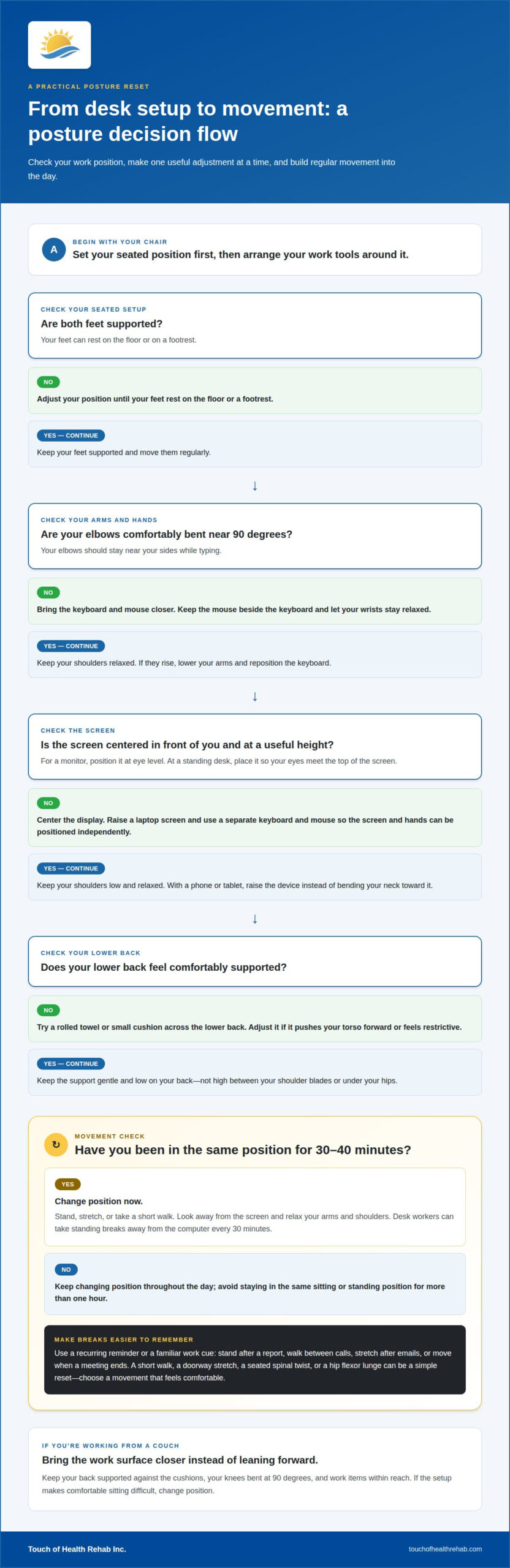
Set your chair first, then position your desk equipment around your seated posture. Sit tall with your back supported and shoulders relaxed, rather than leaning toward the screen. Rest both feet on the floor or a footrest, and move them regularly. Keep your phone, pen, and paper close enough to reach without stretching or twisting your torso. These adjustments reduce the need to reach, hunch, or hold an awkward position.
Next, bring the keyboard and mouse close to your body. When typing, bend your elbows at a 90-degree angle, keeping them near your sides. Place the mouse beside the keyboard so you can guide it without repeatedly reaching outward. Let your hands and wrists stay in a comfortable, relaxed line while you type, rather than bending them sharply up, down, or sideways. If your shoulders rise as you work, lower your arms and reposition the keyboard before continuing.
A laptop can make it harder to position the screen and hands comfortably because its keyboard and display are connected. Raise the laptop screen, then use a separate keyboard and mouse. This lets you position the display independently of your hands. For example, place the keyboard close to the desk edge and keep the raised laptop centered in front of you. Keep frequently used items nearby so raising the screen doesn’t create extra reaching.
Position your monitor directly in front of your body, with the screen at eye level. Centering it helps you face the display instead of turning your neck toward one side. If you use a standing desk, place the monitor so your eyes meet the top of the screen. Keep your shoulders low and relaxed, and bend your elbows to 90 degrees while working at the standing surface. When using a laptop or phone, look down with your eyes instead of tipping your head forward.
On a couch or other non-desk setup, sit with your knees bent at 90 degrees and support your back against the cushions. Bring the laptop or other work surface closer, rather than leaning forward to reach it. Keep work items within reach and change position when the setup makes it difficult to sit comfortably. A couch can suit a short task, but avoid letting its soft cushions pull your head and shoulders forward toward the screen.
Use a brief setup check before beginning a task: feet supported, elbows comfortably bent, keyboard close, and screen centered. If one adjustment causes another strain, such as raising a laptop while forcing your wrists upward, separate the screen from the keyboard. For help developing practical postural education for your work habits, consider guidance tailored to your movement and setup.
3. Lumbar support using a rolled towel
A rolled towel or small cushion can support your lower back while you’re seated. It fills some of the space between your back and the chair, which may make sitting more comfortable. The support should feel gentle, not forceful. If the towel pushes your torso forward or feels restrictive, adjust its position or use a smaller roll. The goal is to support your seated posture without creating another source of strain.
To position the towel, sit back in your chair and place it across the lower part of your back. Lean gently against it and notice whether your torso feels balanced and your shoulders can relax. Keep it behind your lower back, not high between your shoulder blades or under your hips. A small cushion can work in the same way if it sits comfortably in that space. Adjust the support before you settle in to work.
Your chair matters, too. Sit with your back against the chair rather than perched on its front edge, then use the towel to support the space behind your waist. Keep your feet supported on the floor or a footrest so you aren’t sliding forward to reach the desk. If the chair’s backrest already supports your lower back comfortably, extra padding may not help. Let comfort and a steady seated position guide the adjustment.
Check the fit while doing a familiar task, such as typing an email. Can you sit back without leaning away from the screen? Do your shoulders stay relaxed, and can your hands reach the keyboard without pulling your torso forward? If the towel makes you arch sharply or brace your back, remove it or reposition it. Support should make sitting feel more settled, not force you to hold a rigid posture throughout your work.
Soft couches and chairs with deep seats can make towel placement harder. The cushion may shift as you move, or the seat may encourage you to sink backward. Try a smaller roll and check that it stays behind your lower back as you sit. If you keep sliding forward, adjust your position and chair setup rather than adding more padding. A towel is a simple support, not a substitute for a comfortable seat.
Reassess the fit when you change chairs, move your desk, or notice yourself leaning forward. A useful setup lets you sit against the backrest, keep your feet supported, and reach your work without straining. The towel should stay in place during ordinary typing and feel comfortable as you breathe and move. If it causes discomfort, remove it and return to a steady, relaxed sitting position.
4. Avoiding prolonged sitting
Changing position matters more than trying to hold one “perfect” posture throughout the workday. After about 15 minutes in the same sitting or standing position, most people start to slouch. Treat that as a cue to adjust how you’re working: shift your weight, stand briefly, or walk to another part of your workspace. A comfortable posture is easier to maintain when you can move out of it regularly.
Avoid staying in one sitting position for more than one hour. Use a timer, the end of a meeting, or a completed task as a reminder to change position before the hour passes. You might stand to read a document, sit to type, then walk while listening to an audio call. These changes break up long stretches in one posture without requiring you to redesign your workday.
Is a standing desk better for posture? Not by itself. Standing in one position can also lead to slouching, so alternate between sitting, standing, and moving. At a standing desk, use an even surface, keep your feet shoulder-width apart, and avoid leaning to one side.
Make transitions easy in your workspace. Keep the desk clear enough to switch from sitting to standing without first moving piles of papers or equipment. If your desk adjusts, raise or lower it before starting the next task instead of staying in an uncomfortable position. Without an adjustable desk, take a standing break away from your chair, then sit again. Either way, make movement part of your work routine.
Notice how you distribute your weight while standing. Place both feet on an even surface, shoulder-width apart, rather than locking your knees or resting most of your weight on one leg. If you find yourself leaning toward the desk, step back and reset your stance. A brief walk between tasks gives your body a different position from sitting or standing still.
Plan position changes around the work you’re doing. Sit for keyboard-heavy tasks, stand to review a page on screen, and walk during a call when you don’t need to type. If standing starts to feel tiring, sit rather than bracing yourself or leaning on the desk. Return to standing when you’re ready for another change of position.
Treat these adjustments as a flexible routine, not a rigid posture test. A timer can remind you to notice whether you’ve been sitting or standing too long, while task changes create natural moments to move. Keep this limit in mind: don’t sit in one position for more than one hour. Regular position changes help prevent one fixed posture from dominating your workday.
5. Ergonomic equipment and screen positioning
Ergonomic equipment works best when positioned to suit your tasks. Place your main screen directly in front of you, rather than off to one side, so you can look straight ahead while reading or typing. If you use a standing desk, position the monitor so your eyes are level with its top. Keep your shoulders relaxed and low, not raised toward your ears.
Check your head position during a real task, such as reading a document on screen. When you need to look down, move your eyes rather than tipping your head toward the device. If your chin juts out or your neck leans toward the display, adjust the screen position. A centered monitor helps you face your work instead of repeatedly turning your head to follow it.
For laptop work, raising the screen can make the display more comfortable to view. Use a separate keyboard and mouse so your hands can stay lower while the screen sits higher. Place the keyboard within easy reach, then position the mouse beside it. Separating screen height from hand position makes it easier to set up both areas for their different tasks.
Phones and tablets need attention, too. Raise the device toward eye level instead of bending your neck down to read. For example, hold a phone higher for a brief review or place a tablet where you can look at it without leaning forward. If you return to typing, lower your arms and relax your shoulders. Aim to see the display without bringing your head toward it.
Make a quick equipment check when you change from sitting to standing. At a standing desk, keep your elbows bent to 90 degrees, with shoulders relaxed and low. Confirm that the screen remains in front of your body and that the top aligns with eye level. If you raise or lower the work surface, reassess the monitor rather than assuming its previous position still fits.
Use the same check after moving a laptop, monitor, phone, or tablet. Ask whether the screen is centered, whether your eyes can meet it without a forward head tilt, and whether your shoulders stay relaxed. Adjust one item at a time, then observe your posture during a short task. For personalized guidance on workplace posture and movement, connect with Touch of Health Rehab.
Touch of Health Rehab: Post Surgery Physical Rehabilitation
Touch of Health Rehab Inc. provides post-surgery physical rehabilitation to support your return to everyday movement after an operation. If posture or desk habits remain difficult to manage, physical therapy and postural education can help you work on movement and positioning with professional guidance. The clinic also provides work accident rehabilitation when a work-related injury affects your function. These services can be a helpful next step when workspace adjustments and regular movement breaks aren’t enough, or while you’re recovering after surgery. Care can focus on the challenges affecting your daily activities and support more comfortable movement.
If you’d like to discuss the next step, contact Touch of Health Rehab Inc.
Build a workday that supports your next step
To improve posture while working from home, notice which moments make it hardest to stay comfortable. Is it a long video call, a laptop task that draws your head forward, or the transition between work and breaks? Identifying the challenge can help you choose one realistic change to practice. A sustainable routine grows through adjustments that fit your actual work, rather than a setup you can maintain only briefly.
If desk work remains uncomfortable, individualized guidance can help you understand how posture and movement relate to your daily activities. Touch of Health Rehab Inc. offers physical therapy and postural education to support that process. Start by discussing what you’re experiencing and what you hope to do more comfortably.
Contact Touch of Health Rehab Inc. to discuss a suitable next step. With thoughtful support and steady practice, you can build greater confidence in how you move through your workday.
Frequently Asked Questions
How regularly should I take breaks away from my desk?
Get up and move around every 30 to 40 minutes, and take standing breaks away from your computer every 30 minutes. To make this easier to follow, pair a reminder with a routine task, such as finishing an email or ending a call. Use the break to walk around your home or stretch, rather than moving from your desk to another screen.
What does good desk posture look like?
Good desk posture feels balanced, not rigid: sit tall, relax your shoulders, and let your back rest against the chair. Your feet should be supported, and you shouldn’t need to twist or reach repeatedly for everyday work items. For a quick position check, stand with your back and head against a wall and note your chin position, then try to maintain it while seated.
What equipment can help?
Choose equipment that addresses the part of your setup that feels difficult. A footrest can support your feet if they don’t reach the floor, while a separate keyboard and mouse let you raise a laptop screen without raising your hands with it. A rolled towel or small cushion can support your lower back. Start with one change and see how it fits your working position.
When can problems arise?
Discomfort may become more noticeable when your work keeps you in one position or encourages you to lean toward a screen. A laptop placed low on a table, for example, may draw your head forward, while a mouse positioned too far away can prompt repeated reaching. Notice which task or setup makes you shift, hunch, or brace, then adjust that specific part of your workspace.
When should I see a professional?
Consider professional guidance if discomfort continues despite changes to your work setup or makes ordinary tasks harder. A physical therapist can assess how your posture and movement relate to your needs and provide practical education. Touch of Health Rehab offers physical therapy and postural education in Sunny Isles Beach, Aventura, Bal Harbour, North Miami Beach, and Miami Beach.
What is the ideal ergonomic desk and chair setup for working from home?
A useful setup lets you sit back comfortably, support your feet, and reach your work without leaning or twisting. Adjust your chair and desk together: changing seat height may also affect how your elbows line up with the keyboard. Keep frequently used items close, and reassess your setup after moving furniture or switching between a dining chair and your usual work chair.
How should you position your monitor, keyboard, mouse, and feet for good posture?
Center the monitor in front of you, with the screen at eye level; at a standing desk, your eyes should meet its top. Keep the keyboard and mouse close, and bend your elbows to 90 degrees while typing. Rest your feet flat on the floor or a footrest. For a laptop, raising the screen and using separate input devices helps you position the display and hands independently.
How often should you take breaks and change positions while working at home?
Move every 30 to 40 minutes, and avoid staying in one sitting position for more than one hour. Treat those as separate prompts: take a short movement break, and also change how you’re working before a long stretch in one position. For instance, stand to review a document, then sit for typing. If you use a standing desk, alternate rather than standing still throughout the day.